SMPH-managed laptops on Wi-Fi must first sign into the SMPH VPN Portal in order to use WisPIC printers
Printing from personal devices to common printers is not supported or permitted
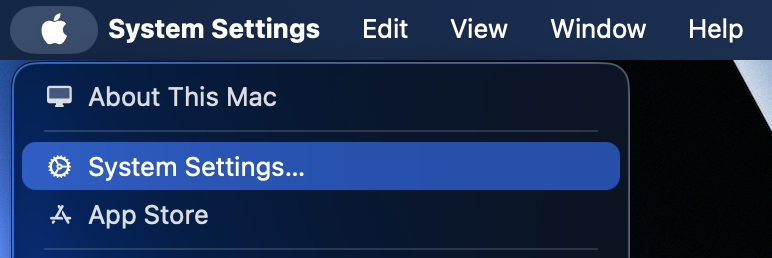
- Click the Apple Icon in the Menu Bar
- Select System Settings:
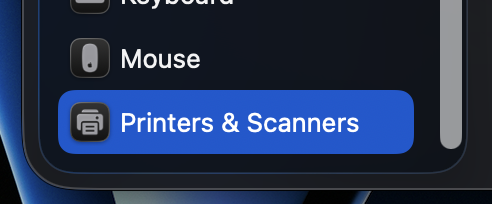
- Scroll to the bottom option and select Printers & Scanners:
- Click Add Printer, Scanner, or Fax…:

- In the top bar, click IP in the center
- Copy and paste psy-ps-print.ad.wisc.edu in to the “Address” field and ensure “Line Printer Daemon -LPD” is selected:

- For “Queue,” copy and paste from the list below based on the room number the printer is located in. The example below is for the multi-function printer in Waiting Room C (room 1720):

- WisPIC Printers:
- PSY-PR-110MFP
- PSY-PR-170PRT
- PSY-PR-1000CMFP
- PSY-PR-1202MFP
- PSY-PR-1320MFP
- PSY-PR-1400EMFP
- PSY-PR-1526PRT
- PSY-PR-1726PRT
- PSY-PR-1720MFP
- B6/593 at UW Health Hospital:
- PSY-PR-B6593MFP
- WisPIC Printers:
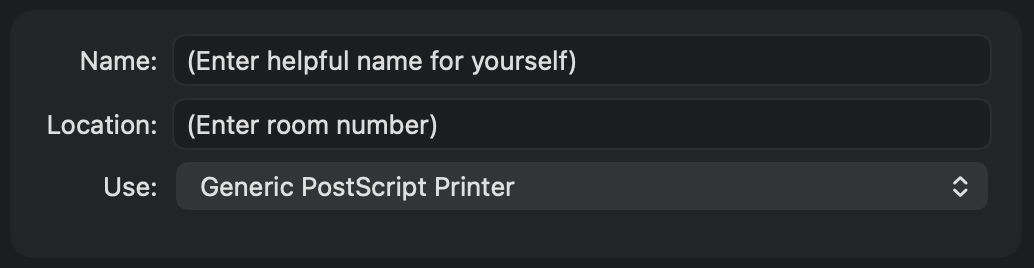
- (Recommended) Enter a personalized name and (or) room number that will help you remember the printer, and then select Generic PostScript Printer:
- Click Add
- In the new window, toggle on the option for duplex printing (or “Duplexer”) then click OK
After the steps above, the printer will show up in the list in “Printers & Scanners.” It is recommended to remove the old printer from the list by click it and selecting the option to remove it.
Note: you will need to save and restart the program you are trying to print a document from, as the printer will not be an option to select until the app is restarted.
If you encounter any problems. Please signs into the Navigator Portal to start a General Support Request. Please include the PSY-Name (or full serial number) of the SMPH computer.
Reminder: Printing from personal devices to common printers is not supported or permitted
Windows computers should automatically add network printers in communal areas. Follow the steps below to verify below that you can use WisPIC printers.
- In the Windows Task Bar, click the search icon.
- Type printers.
- Click Printers & scanners, as shown in the example:
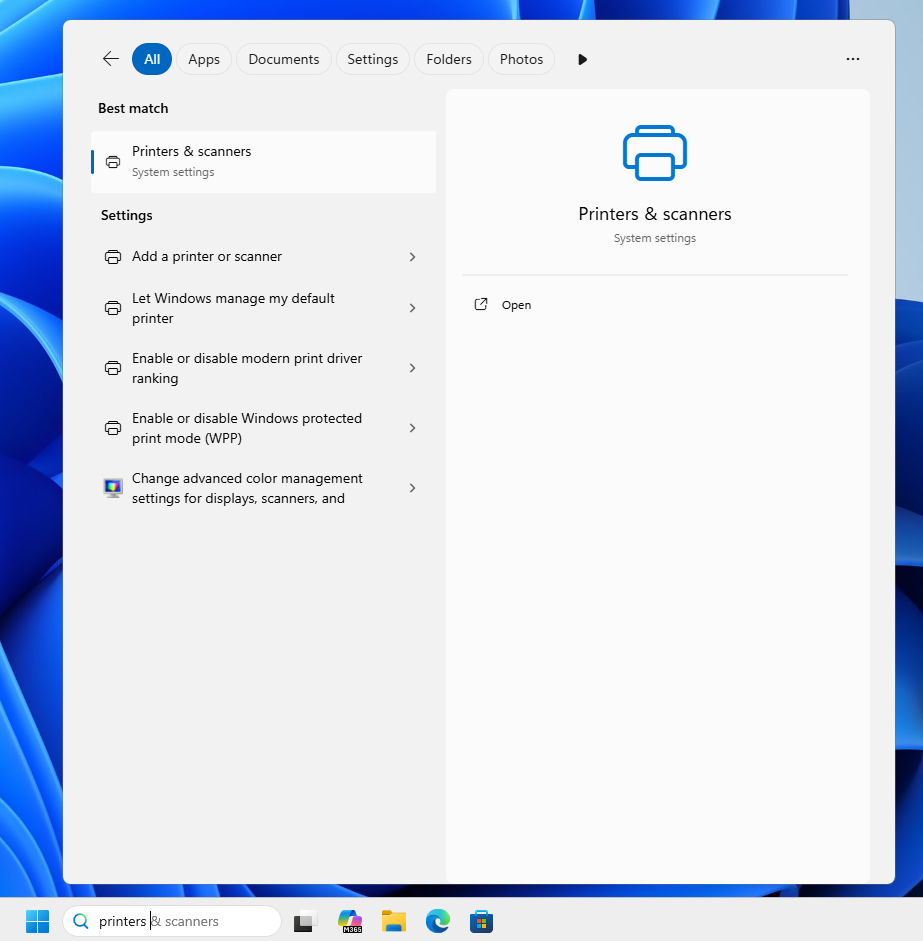
Searching printers in Windows Task Bar - Local Psychiatry printers are shown by name and sorted by room number. For example, PSY-PR-1320MFP is in room 1320.
- No further steps are necessary.
If you do not see a list of printers and you are on WiFi, confirm you’re on the SMPH VPN network to see printers (steps at the top of the page). If you’re on a desktop or your laptop is connected to your desktop setup, please contact the Help Desk by opening a new General Support Request in the Navigator portal.