Background
In order for the Psychiatry Help Desk to manage the department’s computer equipment, we, like all SMPH departments, utilize a product called Workspace ONE (WS1). WS1 a a type of Mobile Device Management (MDM) system that allows enterprise-level configuration and maintenance of computers. WS1 takes the form of a program on your SMPH-managed computer, called (Workspace ONE) Intelligent Hub, also known as the “Hub,” which is a small catalog of software that you may install as needed.
Click the type of computer you have below to find out how to install, uninstall, or update programs using the WS1 Hub app.
Below the instructions are troubleshooting steps.
Open Intelligent Hub
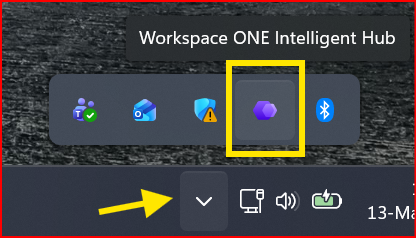
- Click the carrot in the bottom right corner and select the purple hexagon icon, as shown in the yellow box:
- Use the empty box in the top right to search for a program, indicated by the yellow arrow. The example below is a search for the Box program, after which you can click on the result shown in the yellow box:

Hub search feature - For programs that have not been installed, click Install as shown below:
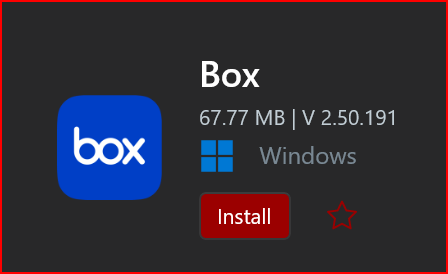
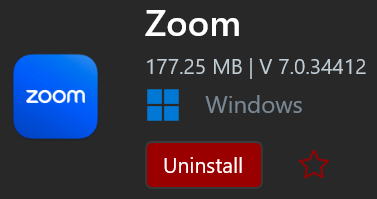
Example of available program for installation - For programs that are already installed, you have the option to Uninstall as previewed below or Update (not shown):
Installation typically takes 2-5 minutes, depending on the size of the app.
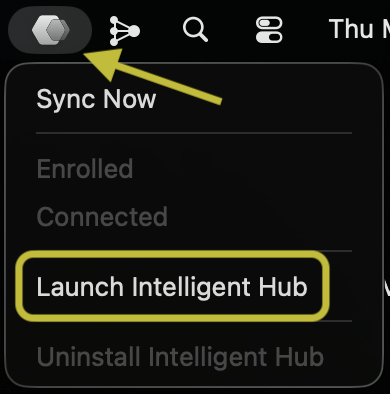
- In the menu bar, click the hexagon icon and select Launch Intelligent Hub shown in the yellow box in the example below:
- In the app, you can search the library in the box as indicated by the arrow. If you wish, you may install directly from the search research by clicking Install:

- For certain apps, you may need to update through the Hub, which can be done by searching for the app and clicking Update:

Troubleshooting
Basic Troubleshooting
The Hub app needs troubleshooting on occasion. Most of the time, it’s a matter of patience. If you wait more than five minutes, you can attempt easy troubleshoot steps, particularly if it freezes or stalls.
- Save and any open work (Word documents, Health Link notes, etc)
- Restart your computer and repeat the steps above before anything else
Should those steps not work on a Windows machine, you can select YourName in the bottom left (on Windows) and click Sync Device. Otherwise, on a Mac, you can click the Hub icon in the menu bar and select Sync Now.
Requesting Assistance
Should the steps above not work, please start a General Support Request (login required) and be sure to include the PSY-Name of the computer.